
Guides
First time?
Just follow along.
From getting ready to sharing the album afterward.
Pick what you need.
Set up a tablet booth
Many hosts use one tablet as the photo booth.
No tablet?
Your own iPhone or Android phone works too.
Nothing to rent.
- 1On the manage page, tap Make a frame and create one. Shooting opens once there is a frame.
- 2Open the Guest camera link in the browser on the tablet (or your iPhone or Android phone), and that spot is your booth. Put up the same QR code, and guests can shoot on their own phones too.
- 3Put it on a tripod, slightly above eye level, with a light in front and a little above. The detailed page covers angles, lighting, and printing, with photos.

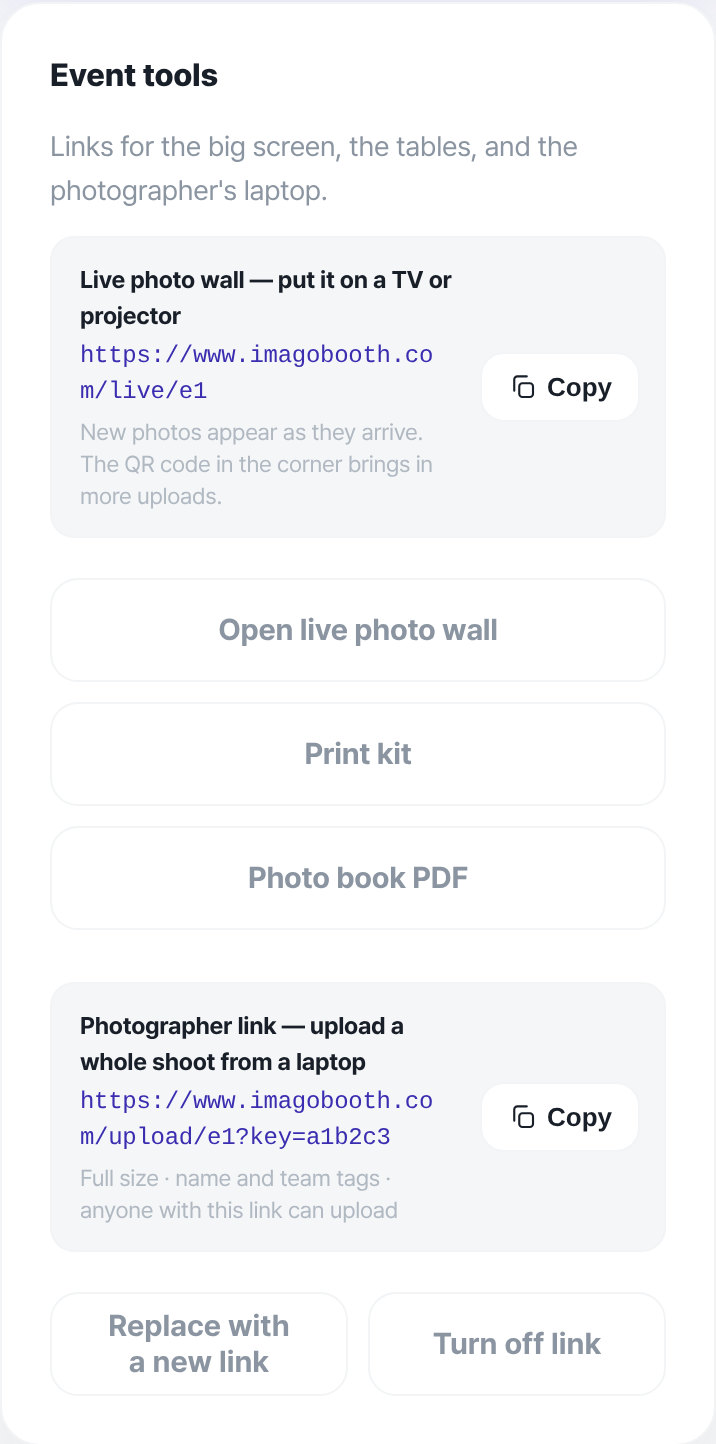
The live photo wall, print kit, photo book, and photographer link all live in one card, Event tools, on the manage page.
Open it from My events by tapping Manage on the event.
Collect guest photos and videos
Even the photos on guests’ phones end up in one album.
On by default.
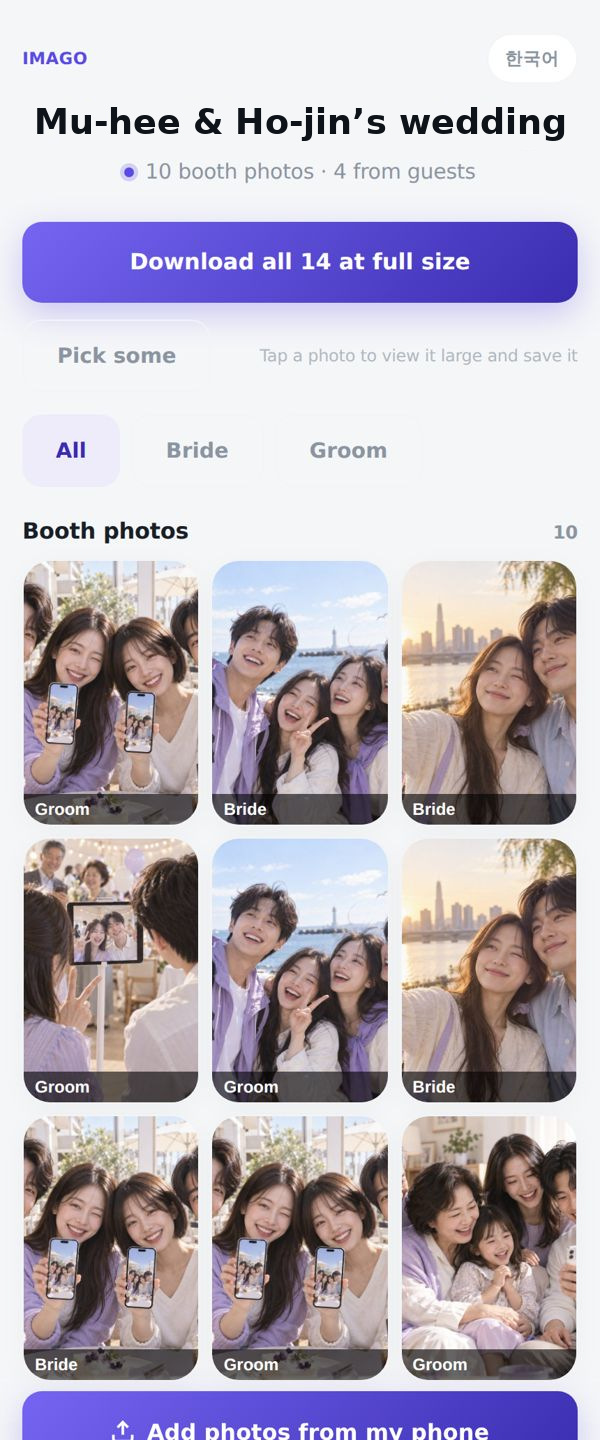
- 1Guests open the album link or scan the QR code and tap Add photos from my phone. No app, no account.
- 2They pick their name, then photos or a 30-second video. Photos up to 25 MB and videos up to 30 seconds and 80 MB go in at full size.
- 3They show up in their own Guest photos section, and location data is removed from photos. Anything inappropriate is screened automatically first, and you can delete or report photos from the album.
- 4For events made in the IMAGO app, the Guests can add their own photos switch turns this on or off.
Live photo wall
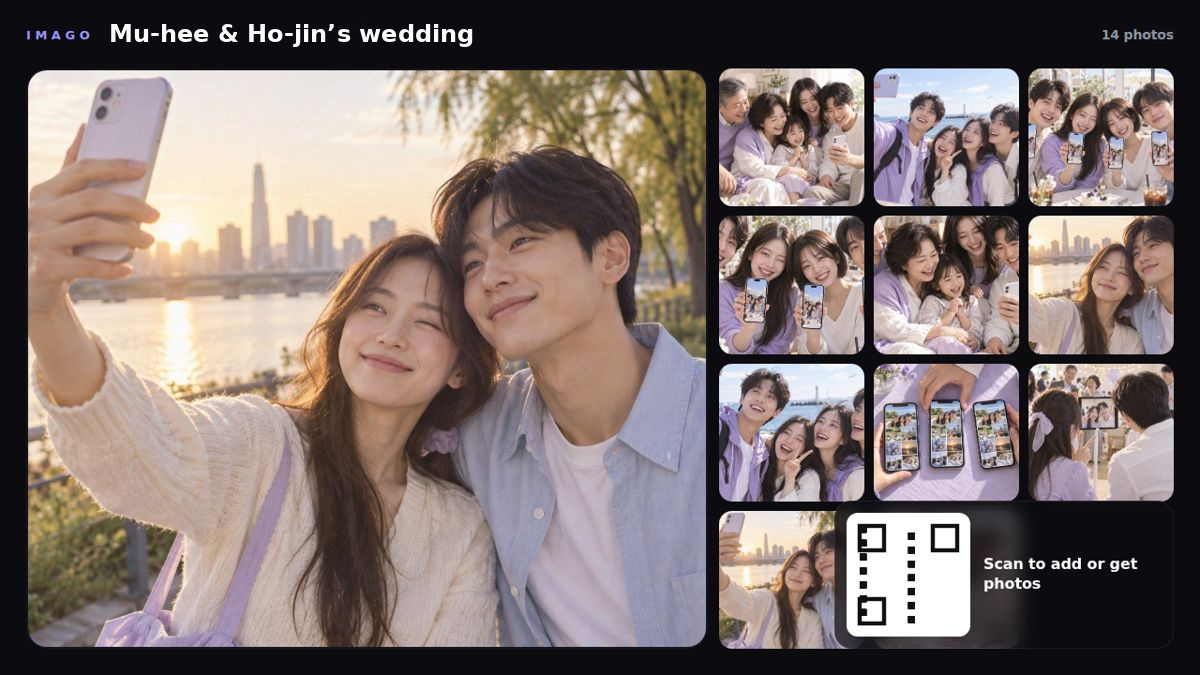
New photos appear on a TV or projector as they arrive.
The QR code in the corner brings in more uploads.
- 1Manage page, Event tools, Open live photo wall.
- 2Show that page full screen on a laptop or tablet connected to the TV or projector.
- 3Each new photo takes the big spot first, and guests use the QR code in the corner to add and get photos.
Print kit
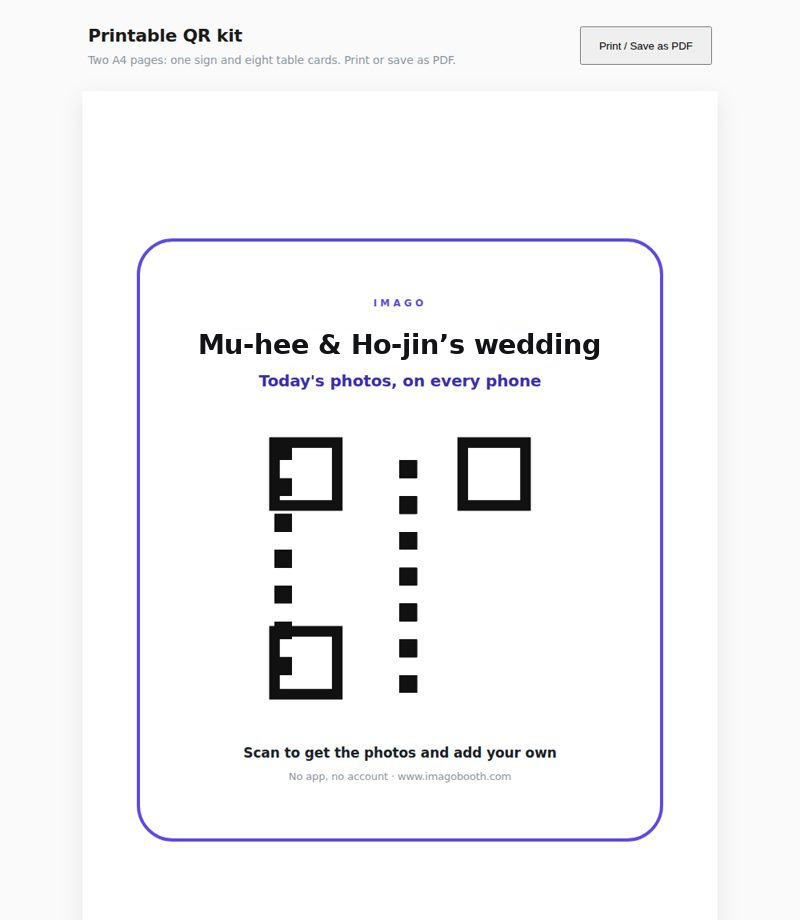
An A4 sign for the entrance and a small card for every table, with your event name and QR code already on them.
- 1Manage page, Event tools, Print kit.
- 2Tap Print / Save as PDF to print right away, or send the PDF to a print shop.
- 3One A4 sign at the door and one card per table is plenty.
Get your photographer’s originals
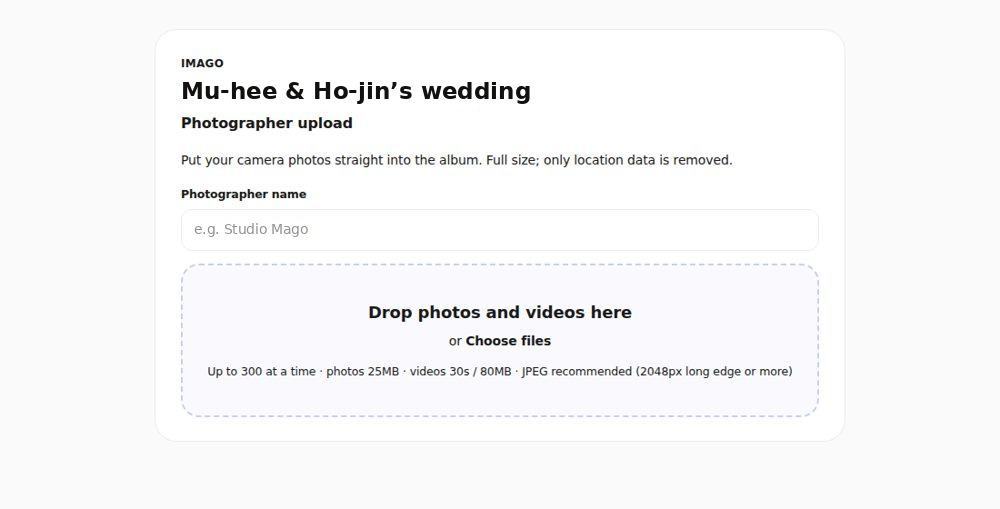
Your photographer uploads a whole shoot from a laptop, straight into the album.
- 1Manage page, Event tools, Create photographer link, then send it to your photographer.
- 2They open the link on a laptop, type their name, and drag in photos and videos. Everything goes in at full size.
- 3In the album they show up as Photographer · name. You can replace the link or turn it off at any time.
After the event, share the album
One link in the group chat, and everyone takes their own photos at full size.
- 1On the manage page, under Where everyone gets their photos, tap Share with guests and paste it in the group chat.
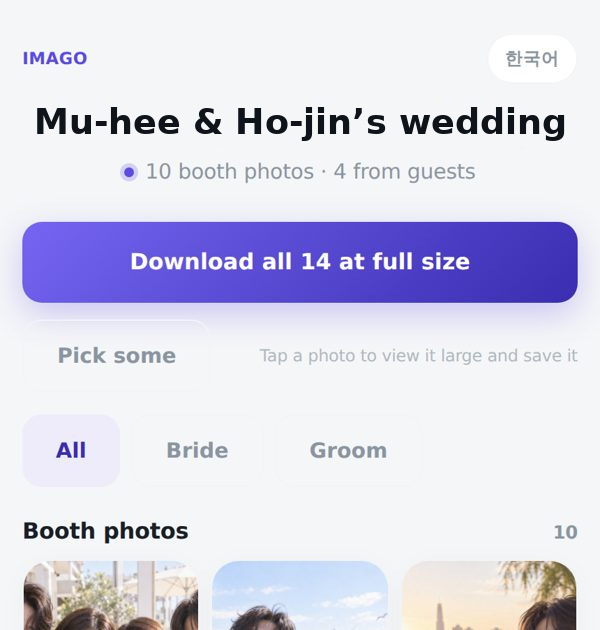
- 2Guests find themselves by name tag, save one at a time, or download everything at full size.
- 3Albums are kept 6 months for a Day pass and a year for Weekend and Special Day. Albums from events a yearly member creates never expire.
Get your photos
No app, no account, thirty seconds.
- 1Scan the QR code on the table card or screen with your phone camera. It opens right in the browser.
- 2Tap your name to see just the photos you’re in.
- 3Save them one by one, or all at once. They’re the full-size originals.

Start a Shared Space
A couple, a family, or friends, up to six people.
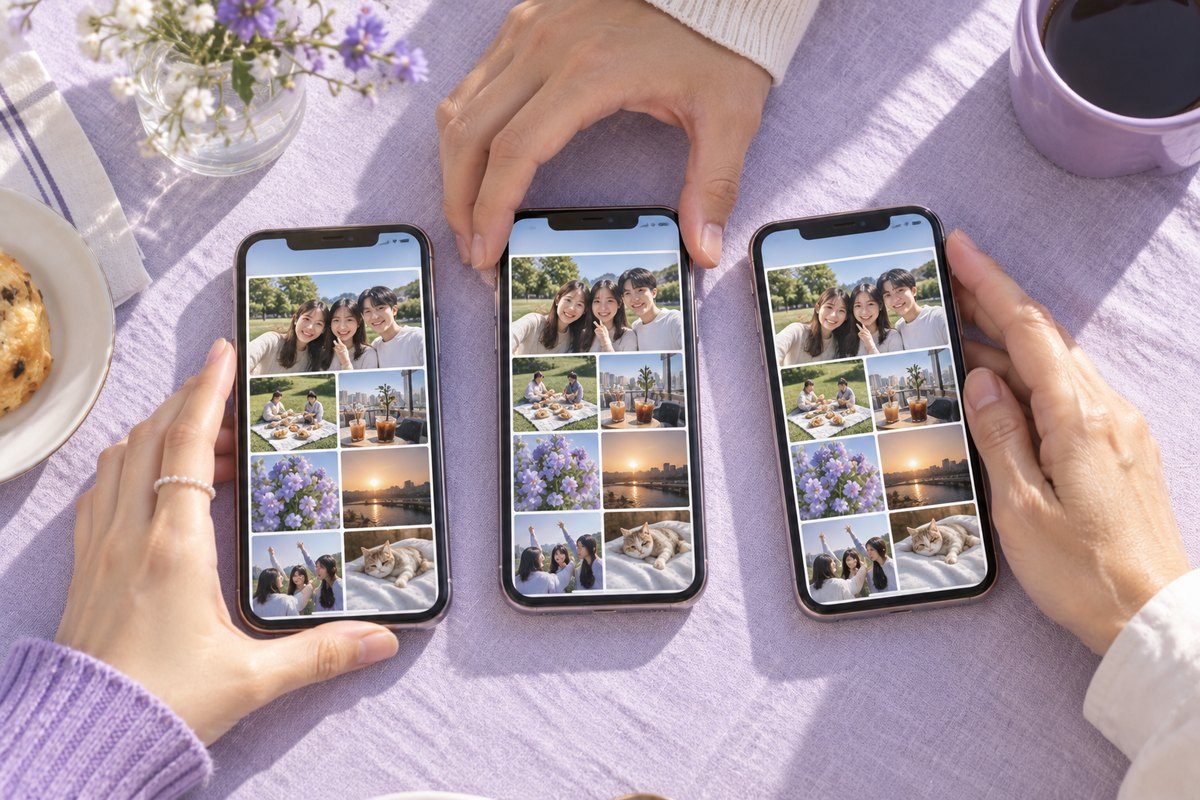
The photos you take together, full size on every phone.
- 1Get the IMAGO app, open the Space tab, and tap Make a Shared Space.
- 2Tap Send the invite to share the six-character code. Others tap Join with a code and enter it. One person pays, and up to six people share it.
- 3On a day you shoot together, turn on Shooting together today. Until midnight, anyone who opens the space can add the day’s photos in one go. Every week, the app also sends a photo from one year ago today as a notification.
- 4On a computer, open the same space at www.imagobooth.com/us to view it, save originals, and add photos.
Shoot a photo strip
Right in the browser, for free.
- 1Tap Shoot free and a pose card appears. Four shots become one strip.
- 2Make and save your own frame with colors, text, and stickers.
- 3Far apart? Use Relay: open a room with a code, and each of you takes one shot on your own phone.

Didn’t find it here?
Just ask us
Common questions are in Help.
For anything else, chat with us or send an email.